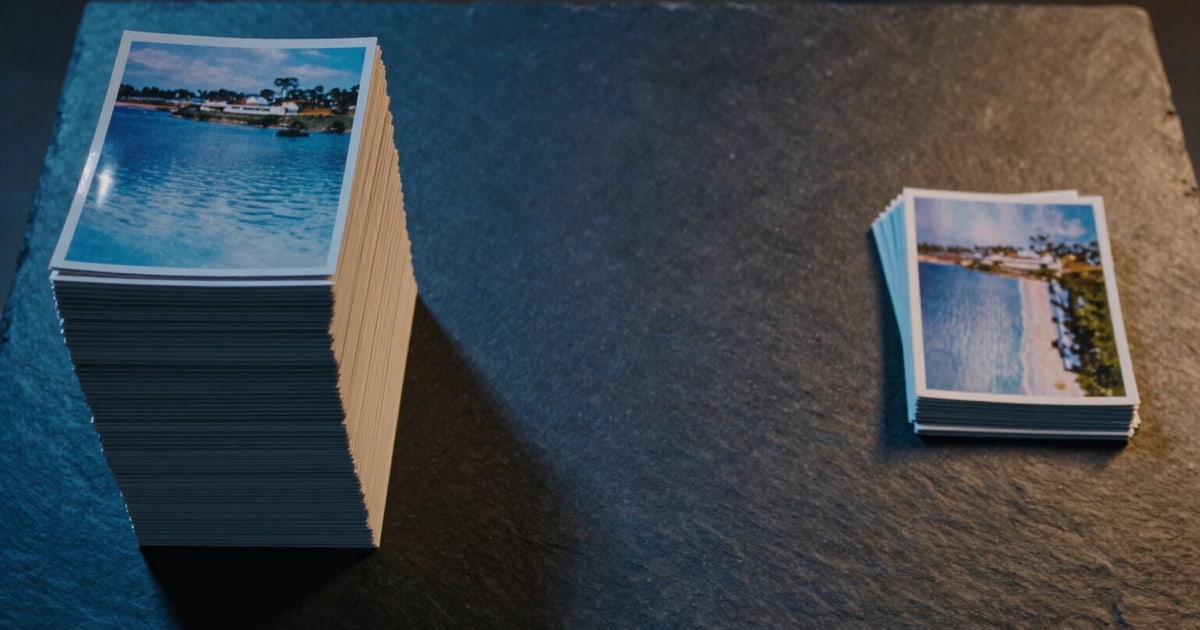
See how many MB you've freed up from your 15 GB of Google
When the batch finishes, the first thing you see is the savings: the MB freed up in big numbers, the percentage and how many more photos you can fit.
Compressing photos blindly convinces no one; seeing the number does.
Google Photos shares its 15 GB of free storage with Drive and Gmail, and within Google Photos there's no screen that tells you how much your batch would weigh if it were properly prepared. This mini app tells you before you upload anything: you process the photos in the browser and, as soon as it finishes, the results screen opens with the impact, not with the download.
The big figure is the MB you've gotten rid of, counted upwards so they're visible. Below, the percentage and the two batch sizes, before and after, with a bar that shows what part of the original size remains. And closing the block, the equivalence phrase: space for quite a few more photos in your 15 GB of free storage, estimated with the real average file size of the photos from THIS batch, not with a made-up average.
The savings are measured honestly. Only the output equivalent to the original is compared: if you've also requested crops for social media or for printing, those files are new and don't count as savings. The photos you marked to keep intact and those that were already optimized don't enter into the average size calculation, and appear in the report tagged as such with their size. If the entire batch was already optimized, the report doesn't sell you zero savings: it tells you the batch is ready and moves on to the download.
If you want the detail, you expand it and you have the photo-by-photo list with its before and after size, the ones that failed and what was done to each one. That same summary travels inside the ZIP as a text file, so you have a record of what you've saved when you no longer have the screen in front of you. You don't need an account to see it and at no point does it access your Google account: the app doesn't read your quota, the estimate comes from your own files.
Try Storage savings report right here
Use it free without an account. If you want to save your result, you can sign up afterwards.
Save / Sign upBenefits of Storage savings report
Savings are the first thing you see
the results screen opens with the MB freed up in big numbers and an upward count, even before the download button.
Percentage and real sizes
a reduction percentage and the two batch sizes, before and after, measured on the files that are delivered, not estimated.
Photo equivalent
the report translates MB into something you understand — how many more photos fit in your 15 GB of free storage, using the actual average file size of your batch.
No inflated savings
only counts output equivalent to the original. Crops for social media or printing are new files and stay outside the savings.
Comparison bar at a glance
the bar shows what proportion of the original file size remains after processing, without having to read any numbers.
Photo-by-photo detail
the expandable list shows the before-and-after file size of each image, and separately marks the ones you kept intact and those already optimized.
Yours in writing
the same summary is included inside the ZIP as a text file, with the totals, what was done and which photos failed.
Without touching your account
no access to Google Photos or reading your quota. The calculation comes from your files, which delete themselves after two hours.
Find out how much space you actually have left
Upload a batch of 10 photos without signing up and see the full report: MB freed, percentage and how many more photos you can fit.
In the features that use AI, responses are generated by artificial intelligence and are not a substitute for professional advice.