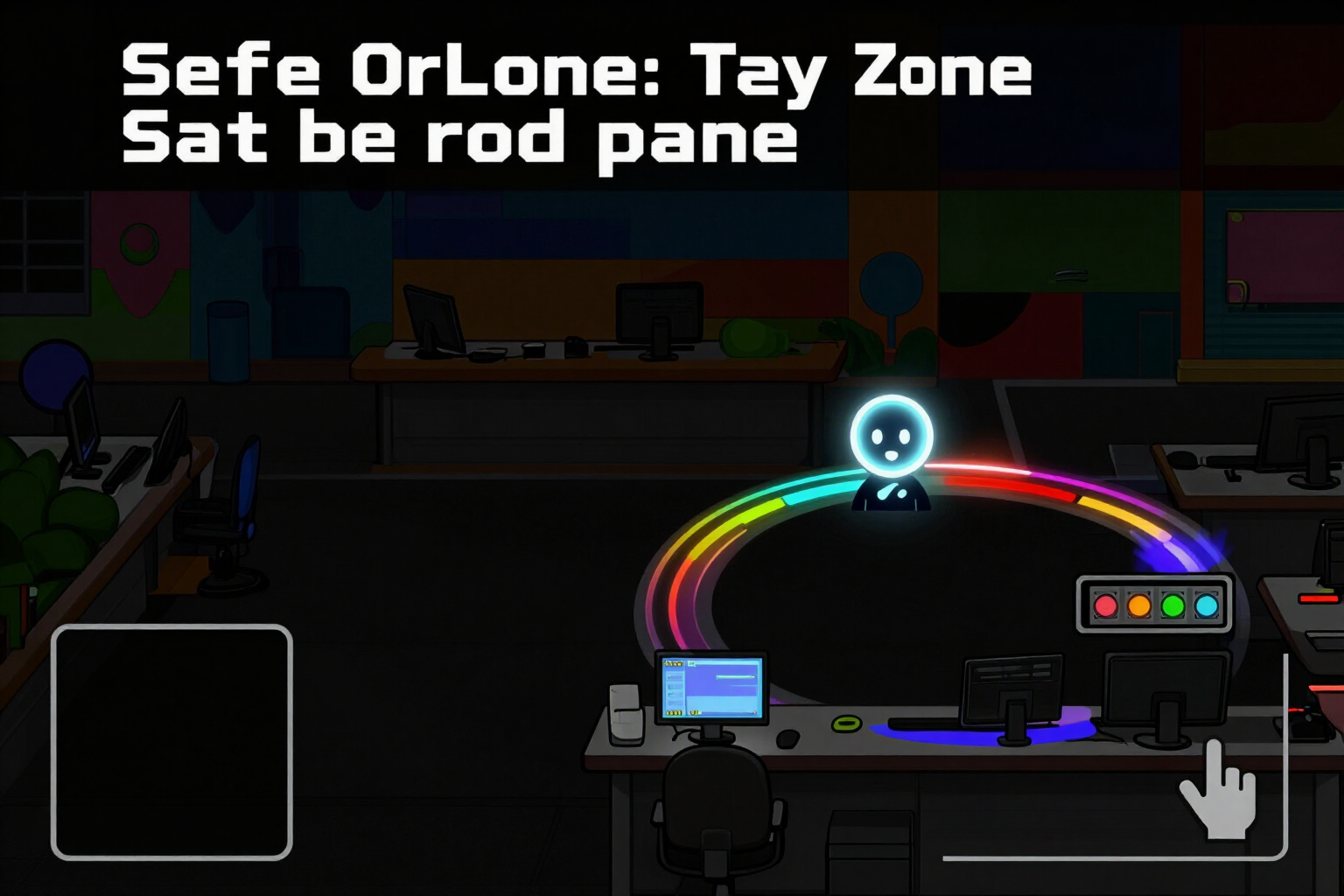
Safe zone simulator with profile picture: see where your profile picture will cover before uploading the header
The preview draws the actual circle of your avatar, the collision box in the bottom left corner, and the central safe zone over your own header of 1500×500, and lights up a traffic-light indicator with three states.
The problem with the header of X (formerly Twitter) is not the design: it's the geometry. Your profile picture overlaps the header and covers the bottom left corner, and the vertical crop is not the same on mobile as it is on desktop.
This feature is the simulator that overlays your header while you assemble it. Three layers are drawn on the preview with the actual values of the service settings, not with handwritten numbers: the rectangle of the central safe zone (x 400, y 70, 1000×320 on the 1500×500 canvas), the collision box of the avatar in the bottom left corner, and, overlaid in its exact position, the circle of the avatar with your photo inside —the same one you just generated in the kit, not a gray marker.
And you switch devices with a tap. On mobile, the simulator applies a crop of 60 px at the top and 60 px at the bottom, places the avatar in a circle of 250 px in diameter centered at (150, 440) and a collision box of 320×180 that starts flush with the left edge. On desktop, there is no crop, the avatar is reduced to 190 px in diameter at (190, 500) and the collision box remains at 220×110. The cropped stripes are shaded in gray so you can see what X will cut off.
Below the preview, always in the same place, there is a traffic-light indicator with three states that is not decorative: it is calculated by measuring the text bounding box of your labels with the actual typography of the preset on a canvas, adjusting for up to two lines. Green “All visible”. Amber “Risk on mobile”, with an approximate count of how many characters are left for the name or slogan to drop below the minimum readable size. Red “Text covered” when the label block enters the circle of the avatar, and there appears the button “Move to safe center”, which changes the alignment to center-right and resolves the collision with one touch.
Two honesties we prefer to tell you: the preview is an approximation in the browser —the final piece is composed by the server with real fonts and contrast measurement— and the measurements of the safe zone, the crops, and the position of the avatar are marked as “unverified” on real devices. We use them because they are the best we have, and we say it on screen instead of giving you a figure as if it were official.
Try Safe zone of the header right here
Use it free without an account. If you want to save your result, you can sign up afterwards.
Save / Sign upBenefits of Safe zone of the header
You see the avatar, you don't imagine it
the circle is overlaid in its real position with your photo inside, not an approximate box that later doesn't fit.
Mobile and desktop at a touch
two distinct geometries (60 px crop on top and bottom for mobile, none for desktop) and the areas that X crops are shaded in gray.
A traffic-light indicator that truly measures
green, amber, or red calculated with the text bounding box of your labels and the typography of the preset, not a generic alert that always appears.
It tells you how much is left
in amber it doesn't leave you guessing, it gives you the approximate character count that needs to be cropped for it to read well on mobile.
One-touch correction
in red, 'Move to safe zone' realigns the labels to center-right and pulls the text below the profile picture without you touching anything else.
Guides turn off
with the 'Guides' button you see the clean piece and return to the layers whenever you want; the app remembers your preference and the chosen device.
No invented numbers
the three layers come from the service configuration and, as long as they are not checked on a real device, the app states it with its 'unverified' stamp.
No registration and no access to your account
the simulator works in guest mode and the app does not access X —no API, no OAuth, no passwords. You download and upload.
Check the safe zone before uploading the header
Enter without registering, set up your header, and check the traffic-light indicator. If it's green, download and upload it.
In the features that use AI, responses are generated by artificial intelligence and are not a substitute for professional advice.