Zoom
Zoom has changed its virtual backgrounds in 2026: what the new library includes, the exact size you need, and why it's worth having your own
Team at AiToolsForAppsWritten with AI assistance14 min readIn summary
- Zoom completely renewed its default virtual background library in version 7.2.0 of Zoom Workplace, released on September 18, 2026, with three new categories —Interiors, Adventure, and Artistic— and a gradual rollout in the following days (Zoom Workplace release notes).
- In the same version, something that almost nobody read changed: the backgrounds uploaded by the admin are no longer downloaded upon login, but on demand, to avoid bandwidth spikes during peak login hours.
- Your saved backgrounds and custom uploads were not touched: Zoom confirms that "your saved and custom backgrounds remain exactly as they are" (What's New from Zoom).
- The measure that really works is 1920 × 1080 px in exact 16:9, 24-bit PNG or JPG/JPEG, with a maximum of 15 MB and a recommended minimum of 1280 × 720 (official Zoom support on virtual backgrounds).
- A catalog background is free and correct, but it leaves you identical to the other four providers that your client will see that week. A custom background, well measured, is the only brand asset that appears in 100% of your meetings.
If you live in video calls, 2026 has changed the scenery without warning you. The productivity application Zoom from AiToolsForApps exists precisely for the gap left by that update: Zoom renews the common catalog, but does not give you a background that is yours, tailored exactly with your logo where it belongs. This article is about the sector —what changed, what specifications are real, and which are forum legends— and at the end, you will see where the tool fits.

What has changed exactly in Zoom's virtual backgrounds in 2026
Zoom replaced the default collection of virtual backgrounds in version 7.2.0 of Zoom Workplace, on September 18, 2026, organizing it into three new categories: Interiors (Indoors), Adventure (Adventure), and Artistic (Artistic). The five inherited backgrounds, each user's custom uploads, and the backgrounds provided by the admin remained available, and the rollout was gradual over the following weeks. Zoom's own news page describes it as scenes "organized into categories, designed with natural framing and clean compositions".
The second change affects companies with imposed corporate branding: the virtual backgrounds uploaded by the admin —and the backgrounds of Clips— are now downloaded on demand instead of automatically upon login. The stated reason is network-related: to reduce bandwidth spikes during mass login periods and speed up client startup. It applies to Windows, macOS, Linux, iOS, and Android (including the Intune variant).
| Change | Version | Date | What it means for you |
|---|---|---|---|
| Renewed default library (Interiors, Adventure, Artistic) | Zoom Workplace 7.2.0 | 18-09-2026 | More catalog options… and more people using the same |
| Inherited backgrounds, personal uploads, and admin backgrounds | — | — | Remain intact |
| Admin background download on demand, not upon login | Zoom Workplace 7.2.0 | 18-09-2026 | The corporate background may not be ready the first second |
| Current client version | Zoom Workplace 7.2.5 | 31-10-2026 | If you don't see the new categories, update |
Source: Zoom Workplace release notes, consulted on November 12, 2026.
The practical consequence of on-demand downloading is subtle but real: if your company imposes backgrounds from the admin panel, the asset is no longer necessarily cached on your device when you rush into a meeting. A custom background, saved locally as a file, does not depend on that.
Why a catalog background leaves you the same as all your competition
Because the catalog is the same for everyone. When Zoom renews the default library, it does so for the hundreds of millions of people who open the client, and the "new library of scenes with clean compositions" becomes, within weeks, the standard wallpaper of your sector. In a purchasing meeting with four suppliers, two will be sitting in front of the same Scandinavian design lounge.
The market context does not help make this anecdotal. According to Gallup's hybrid work indicator, in August 2026, 54% of employees in "remote-capable" positions worked in hybrid mode and 25% in exclusive remote mode, compared to 21% fully in-person (Gallup, Global Indicator: Hybrid Work). That is: for four out of five office professionals, video calls are not a secondary channel, it's the channel. And Zoom continues to grow in that area: in its second quarter of fiscal year 2027, closed on July 31, 2026, it reported $1,277.2 million in revenue (+4.9% year-over-year), with the Enterprise segment at $787.5 million (+7.8%) (Q2 FY2027 results of Zoom Communications, August 25, 2026).
In other words: the showcase where you are most seen is a 16:9 rectangle behind your head, and most professionals fill it with free stock.
A virtual background is not decoration: it is the only brand support that appears in 100% of your meetings, without exception and without printing costs.
What exact size does a Zoom virtual background need
1920 × 1080 pixels, exact 16:9 aspect ratio, in 24-bit PNG or JPG/JPEG, with a maximum of 15 MB. Zoom's documentation sets the recommended minimum at 1280 × 720 and, above all, asks for something that almost nobody does: crop the image to the aspect ratio of your camera before uploading it. For a 16:9 webcam, that means 1280 × 720 or 1920 × 1080, nothing in between.
| Specification | Official Value | Practical Note |
|---|---|---|
| Recommended resolution | 1920 × 1080 px | Full HD, matches most webcams |
| Minimum recommended resolution | 1280 × 720 px | Below this, it shows on shared screen |
| Aspect ratio | That of your camera (16:9 in practice) | Zoom asks to crop before uploading |
| Formats | 24-bit PNG, JPG/JPEG | 8-bit PNG may produce banding |
| Maximum file size | 15 MB | Rarely the bottleneck |
Source: Zoom support article on virtual backgrounds, accessed on November 12, 2026. Watch out for the figures circulating on tool websites: you will see a repeated limit of "5 MB" that is not the one stated in Zoom's documentation.
Why a square image or one downloaded from the internet looks blurry or cropped
Because Zoom does not crop with criteria: it adjusts the image to the video frame. If you upload a square from Instagram (1:1) or a vertical portrait, the client will crop or adapt it to 16:9, and what you chose as the center will no longer be in the center. If you upload an image 900 px wide that you found in a search engine, it will scale up to cover 1920 px and the typical blurriness of interpolation will appear, exacerbated by real-time video compression.
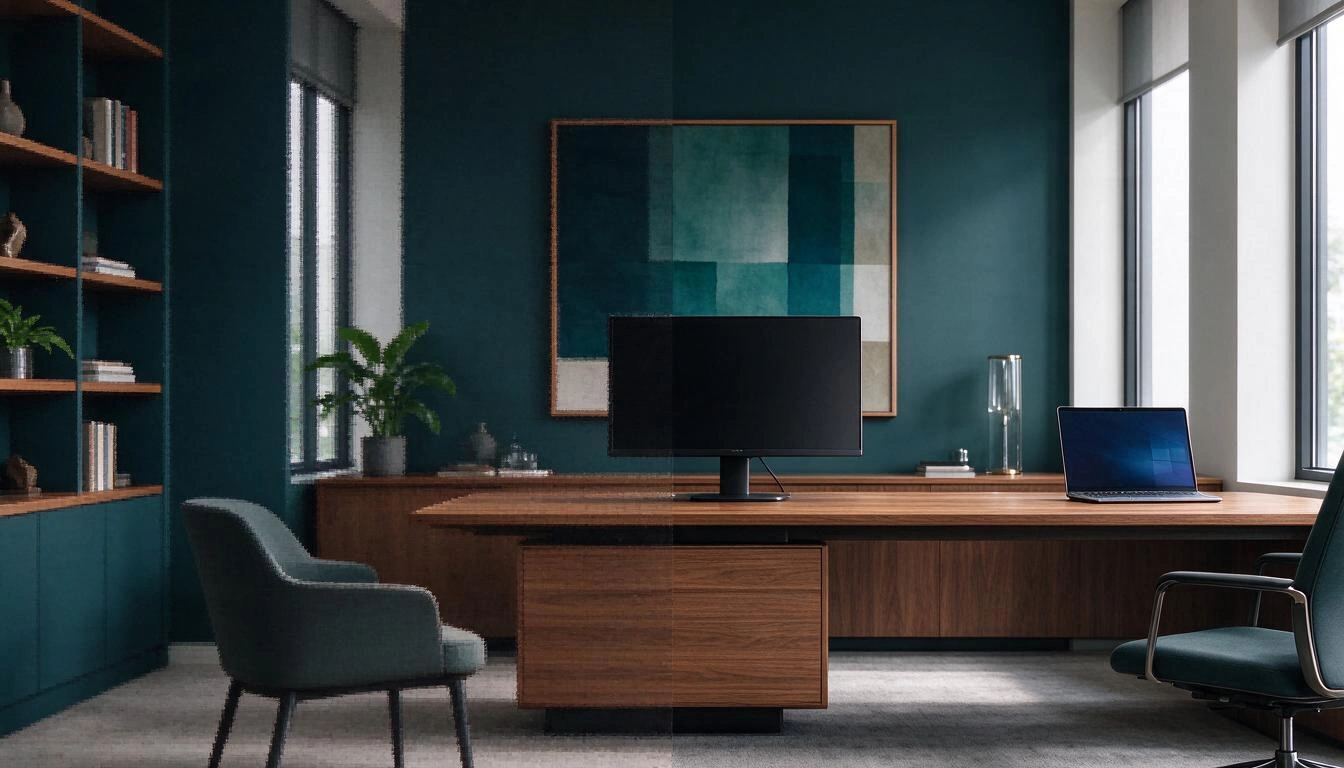
The three most common origin errors:
- Square or vertical image. A 1:1 to 16:9 loses about 44% of usable height. Your composition gets misaligned.
- Small image re-scaled. Anything below 1280 px wide enters upscaling; the video codec punishes it more than a still photo.
- Screenshot or render with text. Fine text is the first thing that compression destroys, and it often falls in areas that the interface covers.
The rule is not glamorous: generate or export to 1920 × 1080 and do not touch the ratio at any subsequent step. Any "approximate" resizing takes you back to square one.
Where you cannot place anything: the safe zone and the name corner
In a virtual background, there are three areas that are not yours: the lower center third, where your silhouette sits; the lower left corner, where Zoom paints the participant's name; and the edges, which are cropped depending on the device. Any informational element —logo, claim, website— must live outside of them.
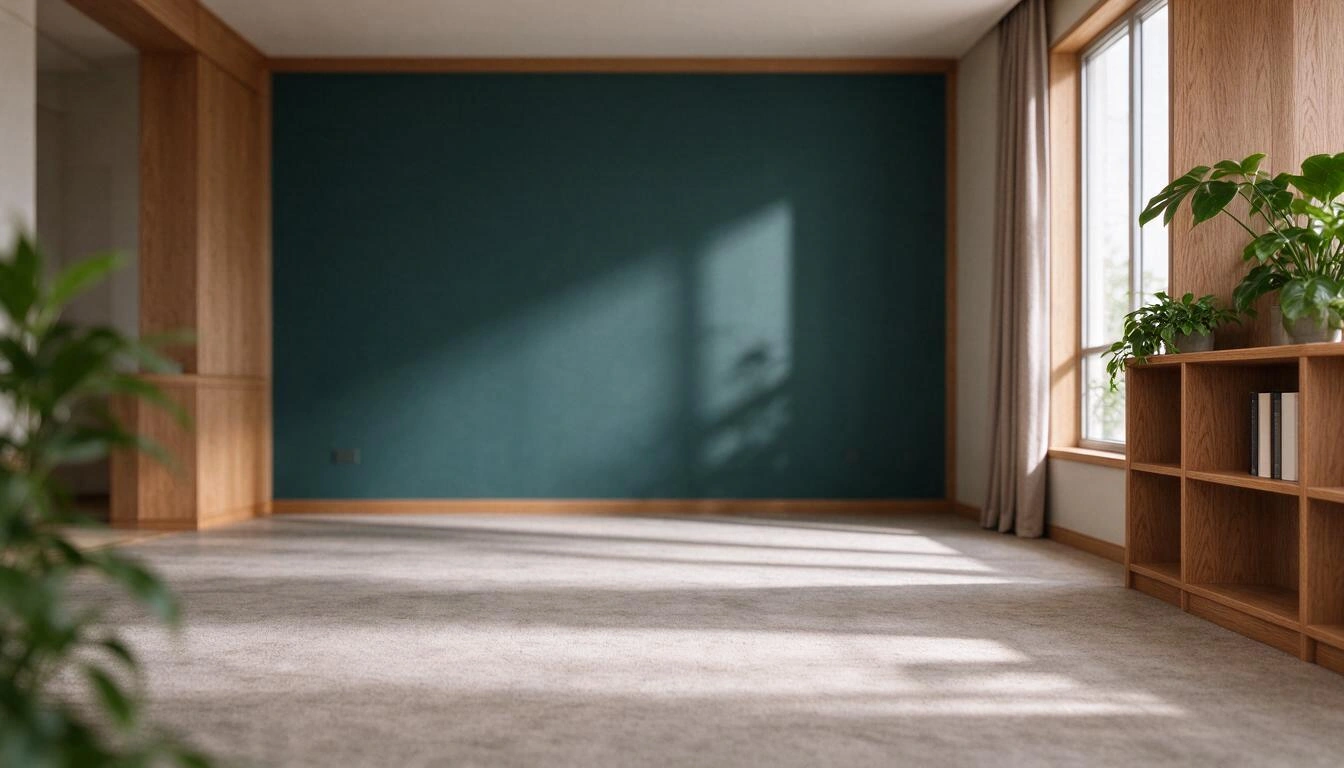
- Silhouette zone (center-bottom). Your head and shoulders occupy the central strip of the frame. A centered logo behind you is visible in the preview when you are alone in the frame, and disappears as soon as you sit up or lean closer to the camera.
- Lower left corner. Zoom overlays the participant's name on the video; this is the behavior associated with the option Always show participant names on their video in Settings → Video, which each attendee controls individually (Zoom Community thread on names over video). You cannot count on it being disabled: consider that corner lost.
- Margins. Between the aspect ratio cropping of each camera and the participant gallery, the outer edges are unstable ground. Reserve a generous safety margin —around 120 px on a 1920 × 1080 canvas— before placing anything.
Result: the area truly useful for branding is the upper half of the frame, far from the name corner. In practice, the upper right is the safest bet.
The mirror effect: why you think your logo is backwards
It is not backwards. Zoom applies a mirror only to your own preview using the option Mirror my video, in Settings → Video and effects. Other participants see you —and see your background— in the correct orientation. This is why half of the internet asks why the text on their background appears inverted (Zoom Community thread on mirrored backgrounds).
From this arise two consequences that change the design:
- Do not "fix" the background by flipping it yourself. If you create a mirrored PNG so that it looks good in your own preview, what the meeting will see is a truly inverted logo.
- But do have both versions. If you want to review your framing without disabling Mirror my video —and some people need it enabled to avoid getting dizzy while gesturing—, it is convenient to have the normal background, which is the one you upload, and a mirrored copy for visual control. And if your design places the logo on the left, check how it looks in relation to the name corner before considering anything good.
How to prepare a brand background that works on desktop and mobile
The same file of 1920 × 1080 works for both, but the mobile crops more: the iOS and Android client frames vertically and eats up a good part of the sides. A brand background that only works on a laptop is a half-baked background.
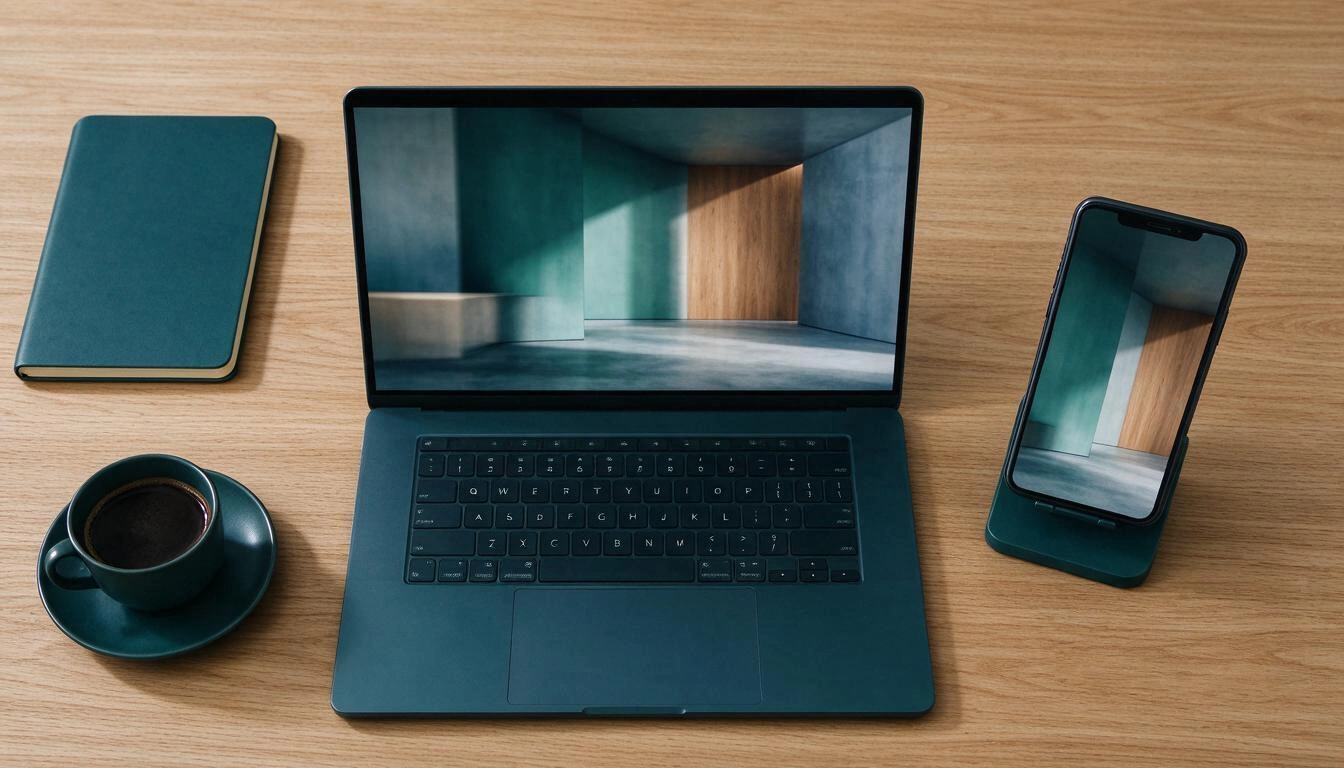
Checklist before uploading anything:
- Exact 1920 × 1080 canvas, never "approximate". Also save a variant of 1280 × 720 for low-power devices.
- Horizontal composition from eye level, as if the room were viewed by a webcam: no high or low angles, which reveal the setup.
- Real depth of field: background and medium shot out of focus. A sharp background from wall to wall is what makes the crop "sing".
- Clean central third, without dense shelves, lattices, or high-frequency patterns right behind your head: these are what confuses the segmenter the most.
- Logo at the top, with margin, never bottom left, and never stretched to "fill".
- No AI-generated text within the image: image models distort letters. The text and logo are stamped later, in post-process, onto the already generated background.
- Test it on mobile before using it in a real meeting.
What your computer needs so the crop doesn’t eat your hair
The virtual background without chroma is more demanding than people think. Zoom documents, for image background without green screen on Windows, Intel i3 with 2 cores of 5th generation or higher, i5 or i7 with 2 cores of 3rd generation or higher, or AMD with 8 logical cores at 3.0 GHz or more; with physical chroma, a dual-core at 2 GHz is sufficient. Devices with Intel HD 620 graphics are required to use physical chroma (system requirements for Zoom virtual background).
When flickering in hair and ears appears despite meeting requirements, the culprit is almost never the CPU: it’s the lighting. Strong backlighting or a saturated color lamp break the segmentation model. Diffused front light, neutral temperature around 5000–5600 K, and a real background without glare is what most improves the crop, above any software adjustment.
How to generate the background already tailored, without Photoshop
This is where the tool fits in. The Zoom app from AiToolsForApps is built precisely around this problem: you generate the environment by describing it with your words or choosing from a closed catalog of presets by style and sector —executive office, minimal tech, corporate panel, loft with large window, legal, consulting, health…—, and the system normalizes the result to an exact 1920 × 1080 instead of leaving you with a weird size from the image engine.
What it solves, point by point, what you just read:
| Sector Problem | What the tool does |
|---|---|
| Inaccurate size and rescaling | Normalization to 1920 × 1080, plus a variant of 1280 × 720 |
| Deformed logo | Stamping the logo with sharp, without stretching, in PNG/SVG/WEBP/JPG |
| Name corner | That position does not exist among the options: the logo goes at the top or bottom right |
| Silhouette area | Preview with silhouette and safety margin of 120 px, with alert if your head would cover the logo |
| Mirror effect | Delivers the normal pair + mirrored for you to check the framing |
| "Catalog" composition | Fixed photography rules in the prompt: diffused light, bokeh, clear central third |
| Meeting pauses | Variant with "on pause" sign over the same background |
If you want to see it applied, the tool's page for custom Zoom virtual backgrounds with logo, agenda, and minutes explains the complete flow, including the upload step in the desktop client, on mobile, and from the browser.
Frequently Asked Questions about Zoom Virtual Backgrounds in 2026
What size should a Zoom background be?
1920 × 1080 pixels in 16:9 is the recommended size, with 1280 × 720 as a reasonable minimum. The format should be PNG 24-bit or JPG/JPEG and the file cannot exceed 15 MB, according to the Zoom support documentation.
Have the old Zoom virtual backgrounds disappeared?
No. Zoom Workplace version 7.2.0, released on September 18, 2026, renewed the default library but kept the five legacy backgrounds, user-customized uploads, and backgrounds provided by the administrator.
Why does my Zoom virtual background look reversed?
Because of the Mirror my video option (Settings → Video and Effects), which applies a mirror only to your own preview. The rest of the meeting sees the background in its correct orientation, so you should not flip the image to "correct" it.
Why is my Zoom background blurry?
Almost always because the original image was smaller than 1920 × 1080 and Zoom has scaled it up, or because it was not 16:9 and has been cropped and adjusted. Always export at the exact size and in 16:9 ratio.
Where should I place my logo on a virtual background?
In the upper half of the frame, preferably at the top right with some margin from the edge. Avoid the lower central third, which covers your silhouette, and the bottom left corner, where Zoom overlays the participant's name.
Can I use the same background on mobile and desktop?
Yes, the same 1920 × 1080 file works, but the mobile client crops the sides more when framing vertically. Keep branding information away from the edges and check the result on your phone before using it in an important meeting.
Why does my corporate background take time to appear after the update?
Since Zoom Workplace 7.2.0, backgrounds uploaded by the administrator are downloaded on demand instead of automatically when logging in. It is a deliberate change to reduce bandwidth spikes; if you need it available instantly, save the file as a custom local background.
Is a chroma key necessary for Zoom to cut out well?
No, if your equipment meets the system requirements for background without a green screen. When the cutout fails even when meeting them, the issue is often lighting: diffuse front light and neutral temperature improve segmentation more than any client adjustment.
What You Take Away from 2026
Zoom has given you a better catalog, and that is good. But a better catalog means the average goes up: what used to set you apart — a well-crafted background — is now the baseline. The only thing that remains uniquely yours is a background made to your exact specifications, with your logo in a position that the interface does not cover, in 1920 × 1080 without a pixel of deviation. The Zoom app from AiToolsForApps exists to produce exactly that in two taps, including the mirrored variant to check the framing and the pause sign for when you get up. Start with the custom logo Zoom virtual background generator page and download the PNG ready to upload.
Create your exact 1920 × 1080 Zoom virtual background, with your logo printed without distortion and the mirrored variant to check the framing. No registration required and just two taps.
Create your exact 1920 × 1080 Zoom virtual background, with your logo printed without distortion and the mirrored variant to check the framing. No registration required and just two taps.Keep reading
View all articles →
ZoomMate and Zoom's new AI features (November 2026): what it already does for your meeting minutes and what’s next for you
Broken Geode in Geometry Dash 2.2091: which mods are not working and how to keep creating
DLS 27 in December 2026: what is confirmed, what is not, and what happens to your club, your squad and your kits when you update